

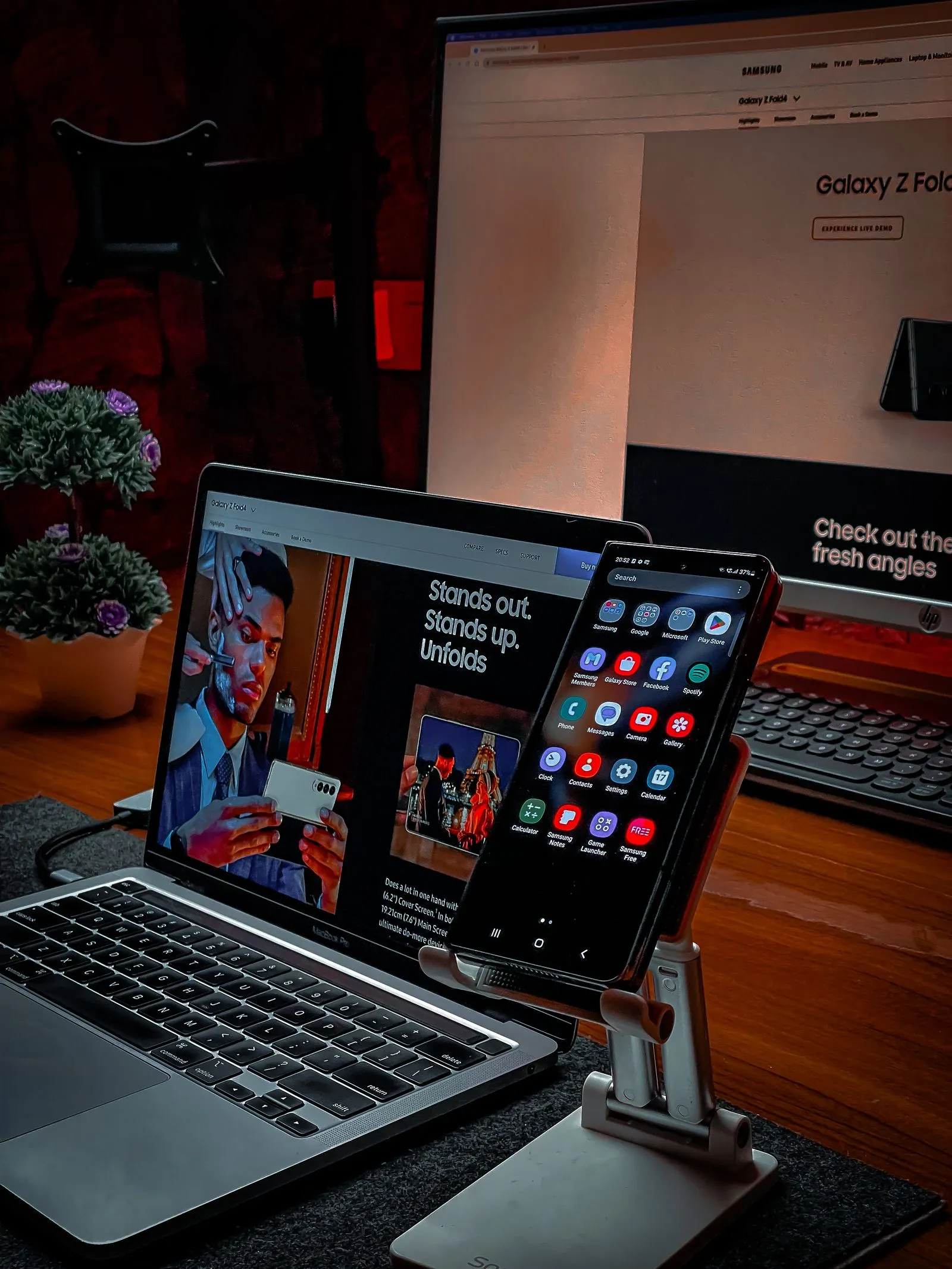
You can begin virtual assistant (VA) work with a modest computer, a stable-enough connection, a clear microphone, and free software. Most entry-level admin work involves email, documents, spreadsheets, calendars, browser-based systems, and calls. None of that requires a premium desk setup.
Use this guide to check what you already have before buying anything. A client may have specific requirements, but those should come from an actual role, not from an advertisement for a starter bundle.
Minimum setup at a glance
| Need | A practical starting point | Upgrade when |
|---|---|---|
| Computer | Laptop or desktop that runs a supported browser, with 8 GB RAM and an SSD if possible | Your current machine regularly freezes during the work you are paid to do |
| Internet | A stable connection that supports your usual tasks and calls | Testing shows repeated call or upload problems after basic fixes |
| Backup internet | A charged phone or hotspot on a second carrier when possible | Your work depends on live calls or fixed coverage hours |
| Audio | Wired headset with a boom mic or clear earbud microphone | Recordings reveal dropouts, distortion, or painful fit |
| Software | Free personal accounts for practice; client-provided business access for paid work | A specific workflow needs a paid feature |
| Workspace | A quiet-enough corner with a stable surface and power access | Noise, heat, or interruptions keep affecting delivery |
Start with the computer you have
A phone is useful for messages, authentication, and emergency hotspot access, but it is not a good primary work device. Client tasks often require several tabs, precise spreadsheet edits, file uploads, and screen sharing.
For common admin work, look for:
- A current operating system and browser that still receive security updates.
- At least 8 GB of memory for ordinary multitasking. More memory can help if you regularly edit video, handle large spreadsheets, or keep many business apps open.
- An SSD rather than an older spinning hard drive. An SSD upgrade can make a usable computer feel much faster without replacing it.
- A working webcam, USB port or compatible audio jack, charger, and battery that gives you enough time to move during a power interruption.
Refurbished and second-hand computers can be sensible choices. Check the battery, keyboard, camera, microphone, Wi-Fi, ports, charger, and warranty or return terms before paying. Do not buy a machine based only on its age or brand; test whether it can handle your intended work.
Run a client-style computer test
Open a document, a spreadsheet, your calendar, a task board, and a video meeting at the same time. Share one browser window, type for five minutes, and switch between the apps. If the computer stays responsive and the fan does not force it to shut down, it is likely adequate for basic VA practice.
Test the connection, not just the advertised plan
Video-call requirements are lower than many people expect. Zoom publishes bandwidth guidance for different meeting types, including calls that use only a few megabits per second. Your experience still depends on upload speed, stability, Wi-Fi quality, other devices, and the number of people on the call.
Run Speedtest at the times you expect to work. Record download, upload, and ping results in the morning, afternoon, and evening for several days. A steady connection near the technical requirement is often more useful than a fast plan that drops every few minutes.
For important calls:
- Use Ethernet when it is available, or sit near the router.
- Pause large downloads, cloud backups, and streaming on other devices.
- Turn off HD video when the connection is strained.
- Keep the meeting link and the client’s approved contact method on your phone.
- Prepare a hotspot or second connection before your first paid shift.
If the connection fails, send a short update: “My home connection dropped. I am switching to my backup and will rejoin in a few minutes.” That message is more useful than a long apology. See Working as a VA With Slow Internet for a full backup plan.
Choose clear audio over expensive audio
A basic wired headset can work well when the microphone stays close to your mouth. Place a boom mic slightly to the side of your lips so it does not catch blasts of air. Select that microphone in Zoom, Meet, or Teams instead of assuming the computer switched automatically.
Record a sample through the meeting app and listen for echo, cable rubbing, fan noise, and uneven volume. Test any noise-removal software with fictional conversation before using it on a client call. Some filters can cut off quiet words or use too much processing power on an older laptop.
You do not need a studio microphone. You do need a setup that lets a client understand you. The guide to sounding professional with a cheap headset walks through microphone position, room control, and return-window testing.
Use free tools for practice
A beginner practice stack can be built from:
- Gmail, Google Drive, Docs, Sheets, and Calendar for email, files, documents, spreadsheets, and scheduling.
- Google Meet or Zoom for call practice.
- Trello for tasks and simple project boards.
- Canva for sample graphics and documents.
- A reputable password manager for your own unique passwords.
Free plans and limits change, so check the official terms before relying on a feature. For paid work, use the client’s approved account and existing system. Do not move client files into a personal account simply because it is more familiar, and do not upload confidential information to a practice workspace.
Prepare the accounts clients expect
Create a professional email address based on your name and protect it with a unique password and multi-factor authentication. Set up a separate browser profile for work practice so personal autofill, bookmarks, and notifications do not appear during screen sharing.
You can also review payment providers such as Wise and Payoneer before you invoice anyone. Availability, verification, fees, exchange rates, and withdrawal options vary by country, so compare the current terms and confirm the payment method with the client in writing.
When using a job platform such as OnlineJobs.ph or Upwork, follow the platform’s payment and communication rules. Treat requests to pay a recruitment fee, buy equipment from a required seller, receive and forward money, or share authentication codes as warning signs.
Build a workable corner
Your first workspace can be a small table in a bedroom. Make it dependable:
- Keep the computer on a hard surface with its vents clear.
- Put the router, charger, headset, and backup phone within reach.
- Face curtains, clothes, or other soft furnishings to reduce echo.
- Agree on a quiet call window with the people you live with.
- Lock the screen whenever you step away.
- Keep drinks away from the computer and cables.
Clients usually notice preparation, communication, and delivery more than furniture.
What can wait
Do not buy a second monitor, premium webcam, ring light, gaming computer, paid productivity bundle, or several courses because a generic checklist says you need them. Upgrade after you can name the problem the purchase will solve.
For example, a second monitor may be worthwhile when you spend hours comparing records across two systems. It is not necessary for learning email management. A paid Canva plan may help with a client’s approved brand workflow, but it is not required to make your first practice samples.
One-hour setup exercise
Pretend a client asks you to prepare a meeting and organize the follow-up.
- Create a calendar event in a second time zone and invite your personal test address.
- Add a short agenda in a shared document with viewer-only access.
- Join a test call, select your headset, and share only the agenda window.
- Write three action items on a Trello board with owners and due dates.
- Send a concise completion update with links that you have tested in a private window.
- Remove the test sharing permissions when you finish.
This exercise checks the setup and the work habits together. Repeat it until you can complete the steps calmly without exposing a personal tab or sharing the wrong file.
Readiness checklist
- My computer can handle a document, spreadsheet, task board, and call at the same time.
- I have tested download and upload speeds during my expected work hours.
- I know how to switch to a backup connection.
- My headset is selected in the call app and sounds clear in a recording.
- My work email uses a unique password and multi-factor authentication.
- I have a separate browser profile for work.
- I can create and test a restricted sharing link.
- I know which purchases can wait until a client requirement makes them necessary.
FAQ
Can I start as a VA using only my phone?
You can apply for work, communicate, and handle emergencies from a phone. Most paid VA work still requires a laptop or desktop for documents, spreadsheets, business systems, file management, and screen sharing.
Do I need Microsoft Office?
Not for practice. Google Docs, Sheets, and Slides cover many beginner tasks and can work with common Office formats. If a client requires Microsoft 365, ask them to provide the correct business access or agree on the expense before you buy anything.
How fast should I type?
Typing speed can help with admin work, but accuracy and careful handling of information matter more than one universal target. Test yourself at TypingTest.com and practice with full sentences, names, dates, and numbers. Track both speed and errors.
How much should I spend before getting a client?
Use what you already own when it passes the work test. Spend first on reliability problems that block practice or paid delivery, and keep receipts, warranties, and return terms for any equipment you buy.
Your next step
Use the Start Here roadmap to choose one beginner service, then set up only the tools needed to practise that service. The Essential Tools for Virtual Assistants guide explains the core software categories in more detail.
Sources & further reading
- Zoom system requirements and bandwidth
- Speedtest by Ookla — test download and upload
- TypingTest.com — measure WPM and accuracy
- Google Workspace (free tools overview)
- Canva free plan
- Trello · OnlineJobs.ph · Upwork
- Wise · Payoneer
Video references
Watch the workflow
One last check: if your next step involves a fee, an ID, or a platform account, open the official link first. Rules and availability can differ by country and can change after a guide is published.